
Roll dice into Roll20
Crawler Play is a character sheet for the Dungeon Crawler Carl Roleplaying Game. With a free browser add-on, the dice on your sheet roll straight into a Roll20 game you already have open — so the whole table sees the result in the game chat, where it belongs.
Setting it up
- Step 1·Install the add-on
Crawler Play VTT Bridge on the Chrome Web Store. It is free, and works in Chrome and other Chromium browsers such as Edge, Brave and Arc.
- Step 2·Open your Roll20 game
Launch your campaign so you are looking at the tabletop — the address should begin
app.roll20.net/editor. The campaign list is not enough; the add-on needs the game itself.Leave it open in its own tab. You do not need to keep it in front of you.
- Step 3·Roll from your sheet
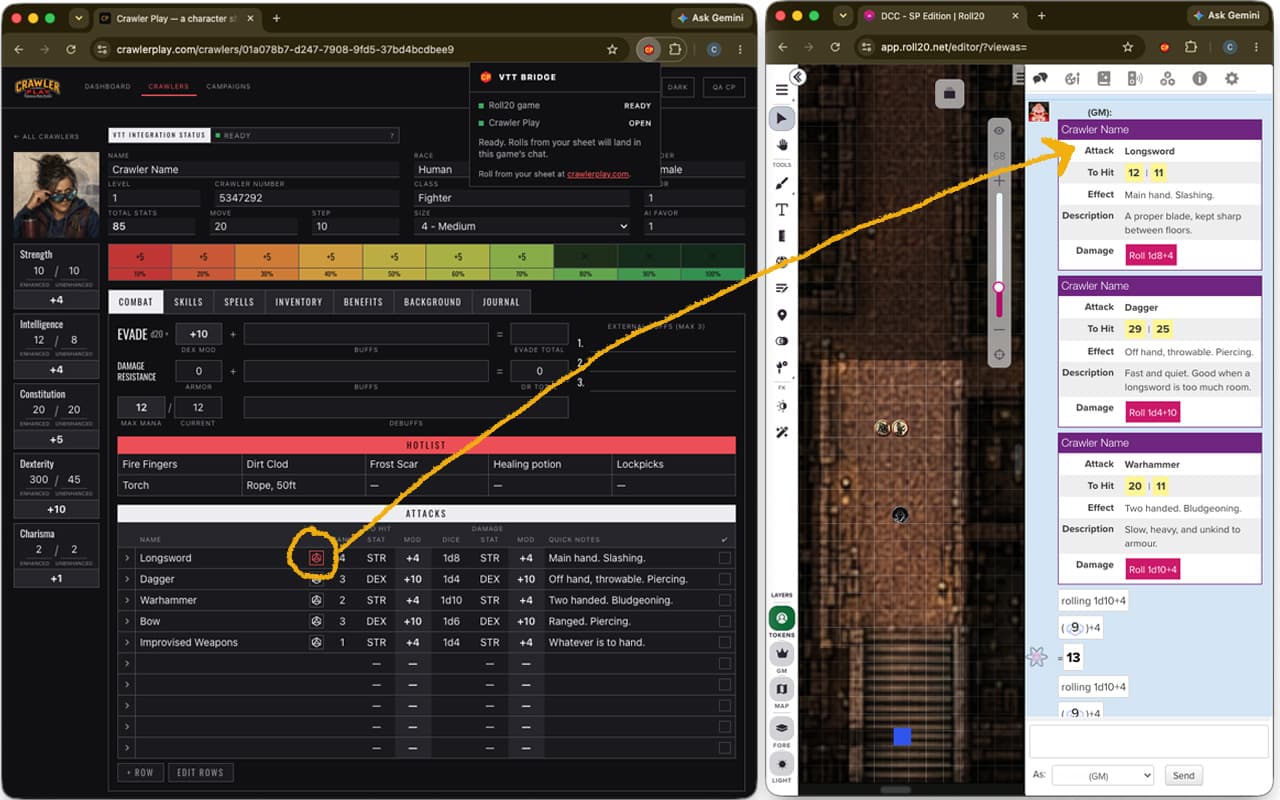
In another tab, open one of your crawlers. Small red dice sit beside every row on Combat, Skills and Spells, and the stat names and EVADE roll their own checks.
Press one. Your Roll20 tab comes to the front with the roll in the chat, and an attack brings a button the table can press to roll damage.
The Crawler Play card
By default your rolls arrive in Roll20’s own plain card, which every game can show. Crawler Play also has a card of its own — maroon and gold, with the dice picked out and combat markers that read as announcements rather than rolls.
It is optional, and it is not something we can install for you. Roll20 keeps card designs in the game’s own settings, so a GM has to paste it in once per game, and the box it goes in needs a Roll20 Pro subscription. Players do not need Pro — only whoever sets the game up.
Roll20 shows nothing at all for a card design a game does not have — not a plainer version, nothing. So paste both boxes below into your game first, and only then turn on Use the Crawler Play card in your settings. There is a button there that sends a test card so you can check it took.
In Roll20: Settings → Game Settings → Character Sheet Template → Custom. Paste the first block into HTML Layout and the second into CSS Styling, then save. If your game already has a sheet, add these to what is there rather than replacing it — every rule below is namespaced, so nothing else is touched.
<rolltemplate class="sheet-rolltemplate-cp">
  {{#banner}}
  <div class="sheet-cp-banner">{{banner}}</div>
  {{/banner}}
  {{^banner}}
  <div class="sheet-cp-card">
    {{#phase}}
      <div class="sheet-cp-ann">
        <div class="sheet-cp-anntitle">{{title}}</div>
        <div class="sheet-cp-annphase">{{phase}}</div>
      </div>
    {{/phase}}
    {{^phase}}
      {{#title}}
      <div class="sheet-cp-head">
        <span class="sheet-cp-name">{{title}}</span>
        <span class="sheet-cp-gem"></span>
      </div>
      {{/title}}
      {{#quote}}
      <div class="sheet-cp-quote">{{quote}}</div>
      {{/quote}}
      <table class="sheet-cp-rows">
        {{#allprops() title phase banner quote}}
        <tr><td class="sheet-cp-label">{{key}}</td><td class="sheet-cp-value">{{value}}</td></tr>
        {{/allprops() title phase banner quote}}
      </table>
    {{/phase}}
  </div>
  {{/banner}}
</rolltemplate>/* Crawler Play roll template */
.sheet-rolltemplate-cp .sheet-cp-card{
background:#fdfaf3; border:2px solid #c9a227; border-radius:7px;
overflow:hidden; margin:3px 0; color:#2b2118;
font-family:Arial,Helvetica,sans-serif;
box-shadow:0 1px 4px rgba(0,0,0,.16);
}
.sheet-rolltemplate-cp .sheet-cp-head{
background:linear-gradient(to bottom,#7d1a1a,#5c0f0f);
display:flex; align-items:center; justify-content:space-between;
padding:7px 11px;
}
.sheet-rolltemplate-cp .sheet-cp-name{
color:#fdf6e8; font-size:14px; font-weight:700;
letter-spacing:.04em; text-transform:uppercase;
}
.sheet-rolltemplate-cp .sheet-cp-gem{
display:inline-block; width:6px; height:6px;
background:#c9a227; transform:rotate(45deg);
}
.sheet-rolltemplate-cp .sheet-cp-quote{
padding:8px 11px; text-align:left; font-style:italic;
color:#2b2118; font-size:12px; line-height:1.45;
}
.sheet-rolltemplate-cp .sheet-cp-rows{ width:100%; border-collapse:collapse; }
.sheet-rolltemplate-cp .sheet-cp-rows tr{ border-top:1px solid #e3d6b4; }
.sheet-rolltemplate-cp .sheet-cp-rows tr:nth-child(even){ background:#f2ebd9; }
.sheet-rolltemplate-cp .sheet-cp-label{
width:1%; white-space:nowrap; text-align:right; vertical-align:middle;
border-right:1px solid #ddcda6;
color:#8a7a60; font-size:8px; font-weight:700;
letter-spacing:.02em; padding:6px 10px;
}
.sheet-rolltemplate-cp .sheet-cp-value{
vertical-align:middle; color:#2b2118;
font-size:12px; line-height:1.35; padding:5px 10px;
}
.sheet-rolltemplate-cp .sheet-cp-value .inlinerollresult{
display:inline-block; background:#ffffff;
border:2px solid #c9a227; border-radius:5px;
color:#2b2118; font-family:Arial,Helvetica,sans-serif;
font-size:14px; font-weight:700; padding:1px 9px; margin:0 2px;
box-shadow:0 1px 2px rgba(0,0,0,.1);
}
.sheet-rolltemplate-cp .sheet-cp-value .inlinerollresult.fullcrit{
border-color:#2f7d32; color:#ffffff; background:#1ac01e;
}
.sheet-rolltemplate-cp .sheet-cp-value .inlinerollresult.fullfail{
border-color:#a01919; color:#ffffff; background:#ff0000;
}
.sheet-rolltemplate-cp .sheet-cp-value a{
display:inline-block;
background:linear-gradient(to bottom,#8b1c1c,#6a1111);
border:2px solid #c9a227; border-radius:5px;
color:#fdf6e8; text-decoration:none;
font-family:Arial,Helvetica,sans-serif;
font-size:11px; font-weight:700; padding:5px 13px;
box-shadow:0 1px 2px rgba(0,0,0,.2);
}
.sheet-rolltemplate-cp .sheet-cp-ann{
background:linear-gradient(to bottom,#7d1a1a,#5c0f0f);
text-align:left; padding:12px 13px;
}
.sheet-rolltemplate-cp .sheet-cp-anntitle{
color:#c9a227; font-size:8px; font-weight:700;
letter-spacing:.2em; text-transform:uppercase;
}
.sheet-rolltemplate-cp .sheet-cp-annphase{
color:#fdf6e8; font-size:15px; font-weight:700;
letter-spacing:.03em; text-transform:uppercase; margin-top:5px;
}
.sheet-rolltemplate-cp .sheet-cp-banner{
display:block; margin:3px 0; padding:9px 14px;
border:3px dashed #c9a227; border-radius:8px;
background:linear-gradient(to bottom,#8d2020,#7d1a1a 45%,#5c0f0f);
box-shadow:0 0 0 2px #4a0c0c;
color:#fdfaf3; font-family:Arial,Helvetica,sans-serif;
font-size:15px; font-weight:700; letter-spacing:.12em;
line-height:1.15; text-align:center; text-transform:uppercase;
}If nothing happens
Click the add-on’s icon in your browser toolbar. It reports whether it can see a Roll20 game and whether it can reach into it, which answers almost every question on its own.
The usual cause is a Roll20 tab that was already open before the add-on was installed: it has no helper in it yet. The toolbar panel offers to reload that tab for you.
Still stuck? Write to system+roll20@crawlerplay.com and say what the toolbar panel reported.
Not affiliated with, endorsed by, or sponsored by Roll20.